






GTA 6, one of the most visually advanced games, has finally been released, and here’s a guide to the best graphics settings you should use.
Rockstar’s latest installment is arguably one of the most graphically advanced titles on the market, with one caveat: it is locked to 30 FPS on all consoles, even the PS5 Pro. However, that doesn’t mean that you cannot enhance the experience further; it won’t be possible to get better performance, but you might be able to get some more fidelity in GTA 6 through these settings.
You can also buy Grand Theft Auto 6 here if you haven’t already!
GTA 6 Best Graphics Settings Guide—Reduced Motion Blur, Camera Bob, HDR Settings & More
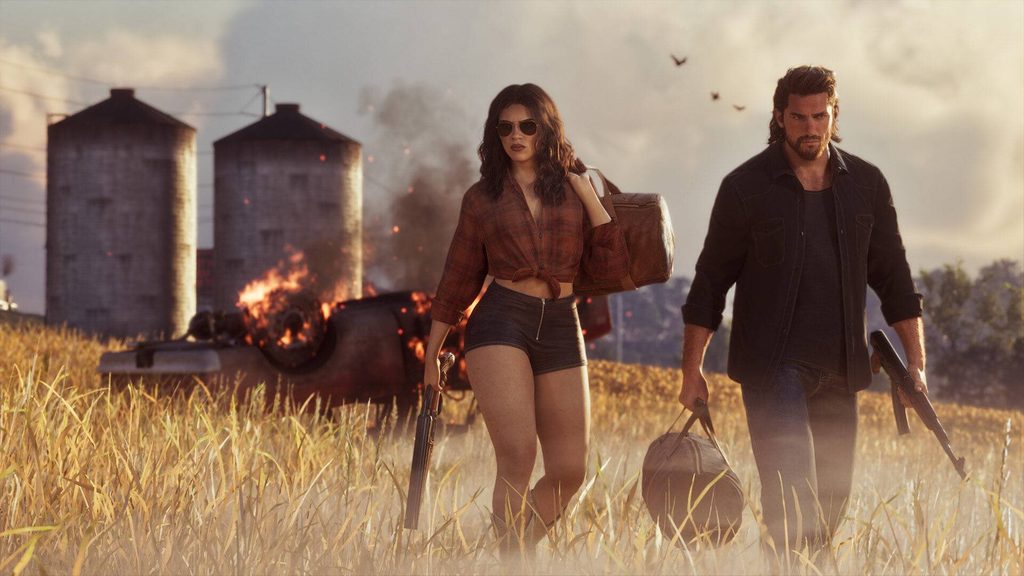
The best graphics settings in GTA 6 are subjective to the TV/monitor you are using, but here are some useful tips that help improve your experience.
To get the best visual experience in GTA 6, it comes down to graphics settings, and players may need to tweak them based on their TVs or monitors. At the same time, this guide will provide players with a bunch of options to try out to enhance their fidelity. Readers should note that enabling 120Hz or VRR for a game that is locked to 30 FPS will not make a difference. Tweaking settings on your PS5 or PS5 Pro might also help.
- More Insider Gaming: How To Do GTA 6 Infinite Money Glitch
First, let’s talk about what you can do in-game, which you can change by heading to Settings, then ‘Display’:
- Reducing motion blur is the first step to a crisper image in GTA 6; you can set it all the way down to 0 or keep it at 1 or 2. You will need to play around to find the sweet spot.
- Check and adjust your brightness levels; the calibration at the beginning may not have been done correctly.
- There are some settings you can also tweak in the ‘Camera’ tab, such as reducing the ‘Camera Shake’ and switching off ‘Camera Bob’.
- On your PS5 or PS5 Pro, go to Settings > Screen and Video> Video Output.
- Here, you should change the resolution to the highest possible option for the best graphics experience in GTA 6. Also enable PSSR on the PS5 Pro.
- Enabling or disabling HDR is optional and depends on your preference and the TV you are using; some handle it correctly, while others mess it up, so you will need to test it to be sure.
In the end, it’s about trying and testing all the options to see what works best for you, but using some of these tips and tricks will surely enhance your graphics in GTA 6. Here’s a video going over all the settings mentioned above.
Which graphics settings are you running for GTA 6? Leave your thoughts down in the comments, and join the official Insider Gaming Discord server.
For more from Insider Gaming, read about how to do the first-person glitch in GTA 6. Don’t forget to sign up for our weekly newsletter.
NOTE: Insider Gaming may earn affiliate commission if you purchase items through links on Insider Gaming. Read more about affiliate commission here.




Comments