






Sound is one of the most important factors in your gaming experience, and this guide will help you apply the best GTA 6 settings.
GTA 6 is Rockstar’s latest blockbuster title, showcasing the significant investment made in its development. A substantial portion of the budget appears to have gone into the game’s sound design, including Justice’s soundtrack, SFX, and other intricate details. It’s a shame not to fully appreciate everything the game has to offer, and that’s why players should use this guide to get the best sound experience in GTA 6.
GTA 6 Best Sound Settings Guide—3D Tempest Audio, SFX to Dialogue Adjustment and More
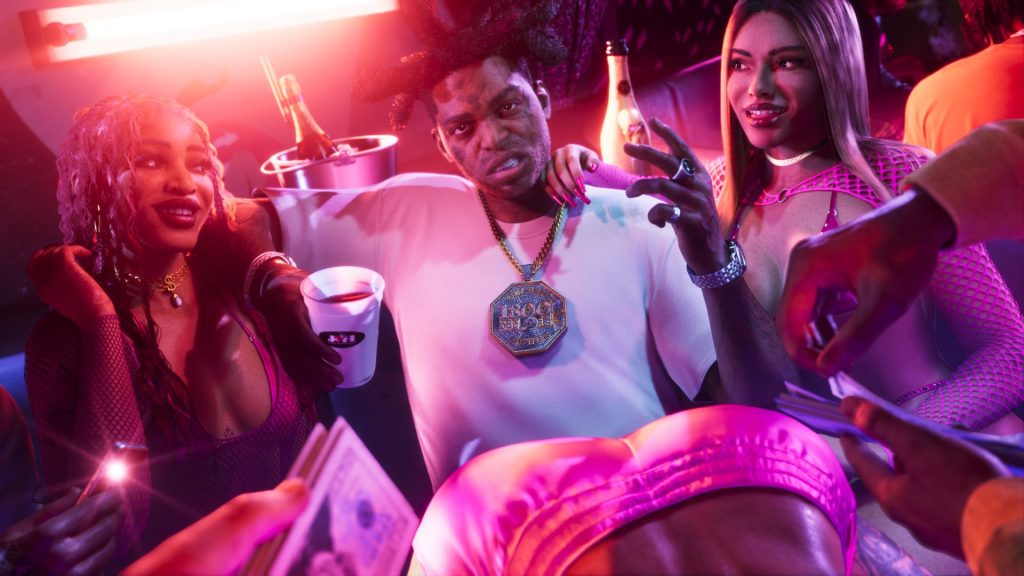
The default sound settings on GTA 6 don’t help much; the main tools reside in the console settings of your PS5 or XBOX Series X/S, which I’ll go into.
The existing sound settings in GTA 6 don’t really help players get the most out of the title; the best way to do that is to have a PS5 and use its exclusive features for the best experience. First and foremost is Tempest 3D Audio; you create a personalized 3D audio profile through ‘Settings’, then ‘Sound’ on the PS5. If you don’t use headphones, you can still have 3D Audio enabled for your TV after the system does measurements for your room. Other than that, there are some enhancements for different output devices too.
- More Insider Gaming: Can You Make Jason & Lucia Fully Naked in GTA 6? Frontal Nudity, Explained
Through the in-game settings, players can turn on Mono Audio and reduce ringing effects after explosions through the Tinnitus Reduction option. Moreover, you can enable or disable the controller speaker, but having it on provides a more immersive experience, as all call conversations take place there. Players also have the option to have the police scanner audio come through the controller speaker, but I have that off.
Moreover, GTA 6’s sound settings also have an option to mute licensed music, which is a great tool for content creators who don’t want their videos taken down. Additionally, you can enable GPS voice through this menu. There are also adjustable bars for Master Volume, SFX, UI, Dialogue, Music, and Media sounds that you can tweak until you find the perfect mix.
- More Insider Gaming: All GTA 6 Guides, Walkthroughs, Best Tips & Tricks
What sound settings have you changed on GTA 6? Leave your thoughts down in the comments, and join the official Insider Gaming Discord server.
For more from Insider Gaming, read about when do your BuckMe limits increase in GTA 6. Don’t forget to sign up for our weekly newsletter.
NOTE: Insider Gaming may earn affiliate commission if you purchase items through links on Insider Gaming. Read more about affiliate commission here.



Comments