






GTA 6 has a ton of things to do within the game itself to keep you occupied for many hundreds of hours. For the extra artsy out there, and like many other games, GTA 6 offers a photo mode.
Here, it’s actually called Photo Studio, though it’s about the same as any other video game photo mode you’ve ever used.
However, despite how familiar you already may be with in-game photo modes, you may still be confused about where your saved images are actually ending up. Here’s how to locate your Photo Studio saved images in GTA 6.
You can purchase Grand Theft Auto 6 here if you still need a copy yourself.
Using Photo Studio in GTA 6
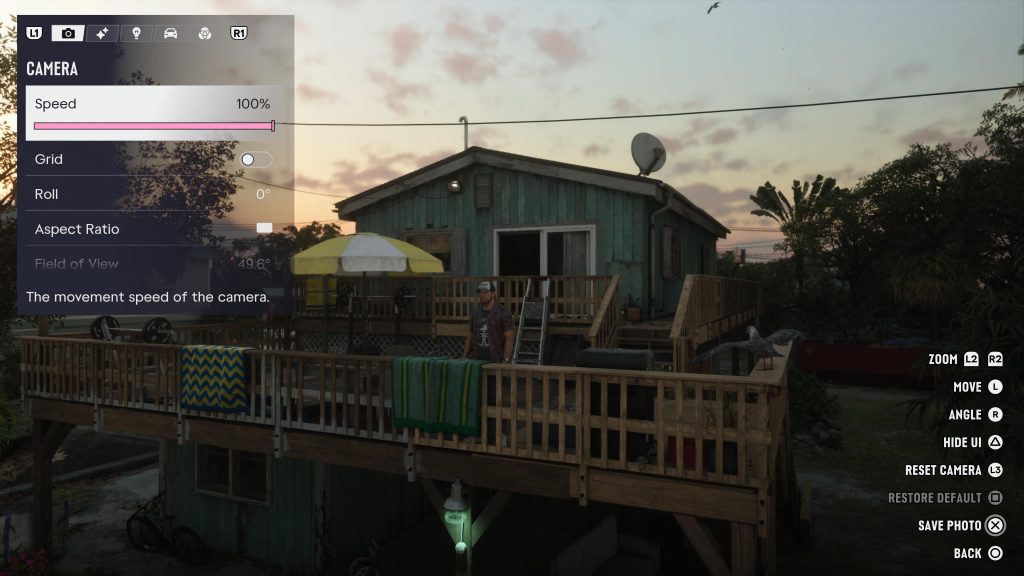
From the main pause menu in GTA 6, you can either toggle down to the Photo Studio prompt to open the game’s photo mode, or simply press Square on PS5/X on XBOX to access it.
From here, you can fully customize your own pictures, including using many different filters and settings to get everything looking exactly how you want it. You can then hold the confirm button on your controller to save the image.
The question then becomes, “Where does my saved image actually end up?” You might think it’ll populate on your in-game smartphone in the photo gallery, but that’s actually not the case.
Finding Your Saved Pictures from Photo Studio
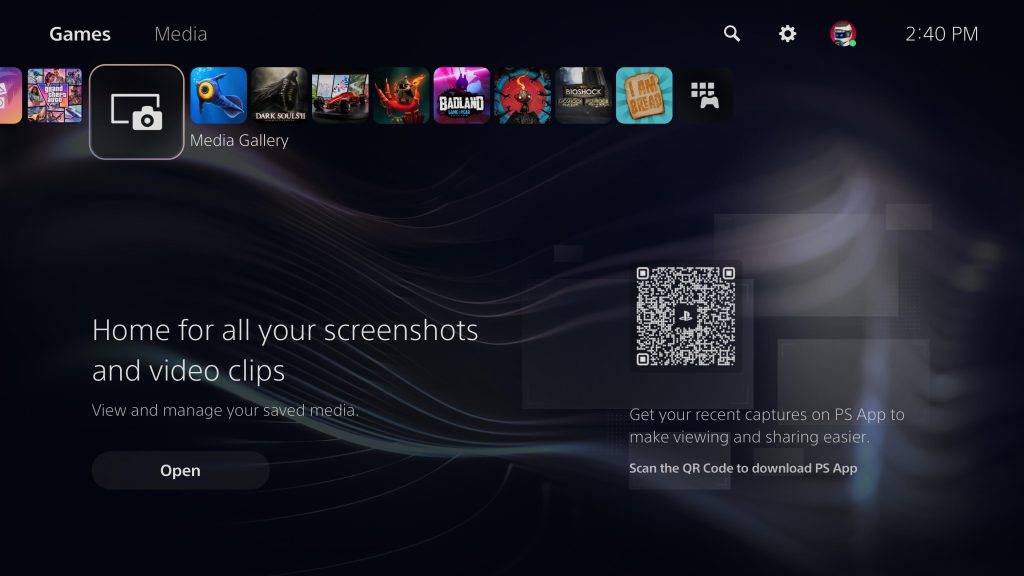
Instead, pictures saved via GTA 6’s Photo Studio actually end up in your console’s Media Gallery itself, not anywhere within the game. On PS5, select the Media Gallery icon from your home screen if you’ve used it recently enough.
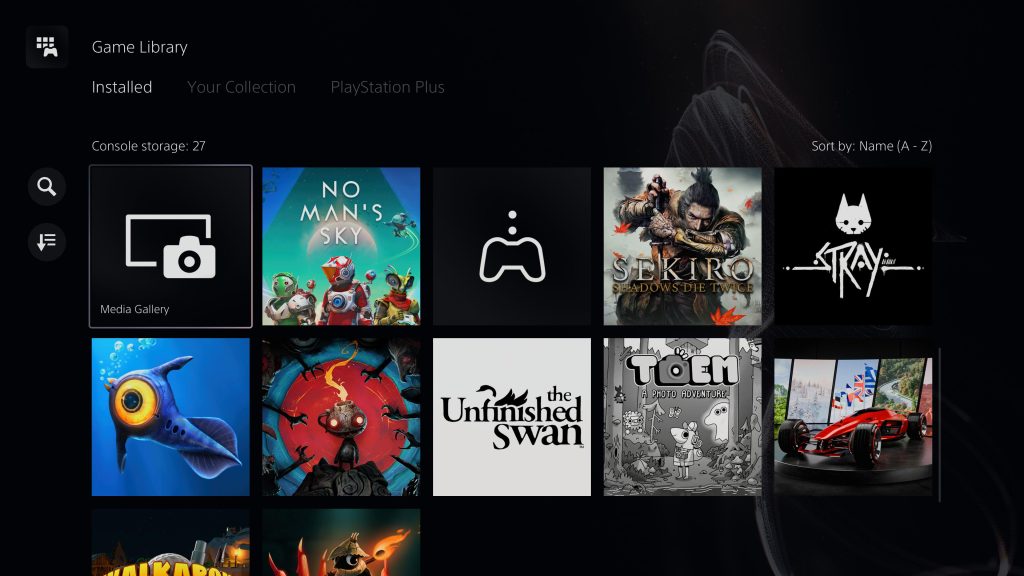
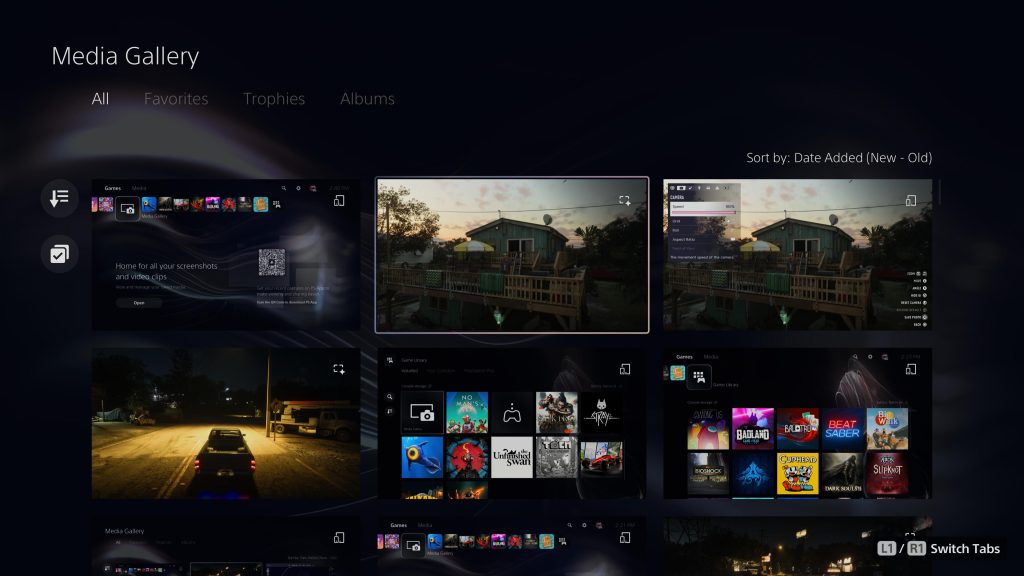
If not, you can tab all the way over to the right of your icons and enter your Game Library. Here, scroll down to the “M” section if your downloads are sorted alphabetically, and you’ll find your GTA 6 Photo Studio images there.
This process is slightly different on XBOX, but the same principle is followed. From the XBOX menu, go to My Games & Apps, then Apps, and finally Captures to see all your works of art from Photo Studio.
Have any particularly good GTA 6 screenshots? Show them off in the Insider Gaming Discord server!
Need help with anything else GTA 6-related? Check out our list of guides, tips, and walkthroughs. For more, make sure to sign up for the Insider Gaming weekly newsletter.
NOTE: Insider Gaming may earn affiliate commission if you purchase items through links on Insider Gaming. Read more about affiliate commission here.

Ethan Krieger got started as a sports journalist covering the NBA, but video games have always been his main passion. Since then, he's edited and written for multiple gaming outlets,…
More from Ethan Krieger



Comments