


To play Halo: Campaign Evolved on PlayStation 5, you must have an XBOX account. As weird as it sounds, it’s a fact. If you need your first-ever Microsoft account to play the Halo remake, I’ve got you covered.
I’ve made it clear this is my first Halo experience, as discussed in my Insider Gaming Halo: Campaign Evolved review, and having a proper XBOX account for me was unusual, given I’ve basically been a PlayStation gamer my whole life.
Not everyone’s the same, granted, but if you need to know what to do to actually play the 2026 Halo remake, I’ve outlined the process.
How to Make a Microsoft XBOX Account for Halo: Campaign Evolved on PlayStation 5
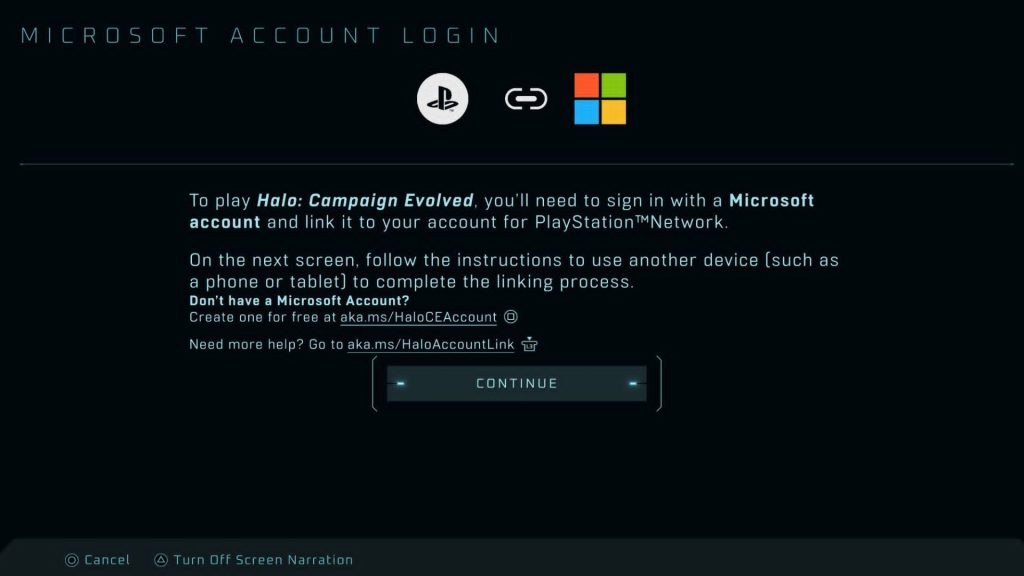
Before we get anywhere, you need a Microsoft Account and an XBOX account with a full gamertag, which you can get by signing into your Hotmail account and then going from there.
Microsoft Account
Firstly, you need to go to this link to create a Microsoft account, if you haven’t already.
- More Insider Gaming: Halo’s Project Ekur Has Been Canceled
Go through the process, ensure you can log in just fine, and this is the first step done!
XBOX Account With Gamertag
To make a proper XBOX account and get yourself a Gamertag to go along with it, the Halo Support page has provided in-depth instructions:
- ‘Visit https://aka.ms/HaloCEAccount.
- Select Create an account at the bottom of the sign-in window.
- Enter the email address for your Microsoft account.
- If you need a new email address, add @outlook.com to your alias.
- Create a password for your Microsoft account.
- Select your country or region, then enter your date of birth.
- Enter your first and last name.
- If you are prompted, create and confirm your Passkey.
- Review how your XBOX profile will appear. Select the pencil icon to customize your Gamerpic and Gamertag, or select Randomize.
- Select Save & continue.
- Select a preference for optional diagnostic data.
- Select Continue.’
If you do these steps correctly, along with the section on the Microsoft account, you should have everything you need to go!
How to Connect Microsoft & XBOX Accounts to PS5 For Halo: Campaign Evolved
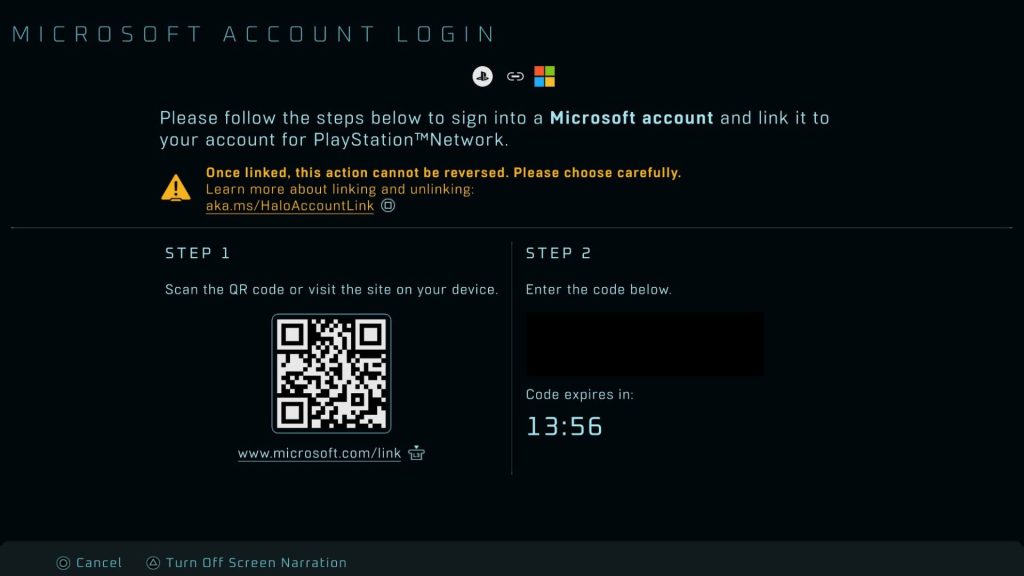
One of the first things you’ll see when you start up Halo: Campaign Evolved is the requirement of connecting your accounts, and as long as you have them all, you can scan the QR code and get the drawn-out process underway.
Less talking, more walking you through the steps:
- Scan the QR code with your phone.
- Enter the eight-character code that appears under Step 2.
- Confirm access on your phone.
- Allow Microsoft to send a code to your linked email address.
- Click to send a notification.
- Note down the two-digit number that should appear.
- Press on the ‘Are you trying to sign in?’ Hotmail pop-up.
- Enter the two-digit number we recorded.
- Press to approve.
- You should now get an XBOX site link pop-up link confirming the account is connected.
- Choose ‘Let’s go.’
- Your TV screen should update and ask you to confirm the details are correct.
- Press on the box and select Sign In.
This is everything I did, and as cumbersome as it was, it eventually worked, and I was ready to play Halo: Campaign Evolved.
- More Insider Gaming: How Long Is Halo: Campaign Evolved? Game Length & Total Hours, Explained
Let me know if you have problems, as there might be different cases for everyone, depending on various factors.
Is this your first Halo game? Let us know via the official Insider Gaming Discord Server.
For more Insider Gaming content, check out ‘All Halo: Campaign Evolved Pre-Order Prices, Editions & Rewards,’ and be sure to sign up for our free Weekly Newsletter.

Andy is Insider Gaming's Senior Evergreen Editor and has been in the games journalism sphere in one way or another for over 7 years. His video game taste is as…
More from Andrew Highton