






There’s little more frustrating than losing hours of progress in a video game, particularly when you’ve been relying on an auto-save feature to keep everything safe. Unfortunately, that’s exactly what some Grand Theft Auto 6 players are experiencing, with reports of lost progress becoming increasingly common.
It’s left many questioning whether GTA 6 even has an auto-save system, especially after several reports of players losing significant chunks of their playtime. Even an Insider Gaming team member has experienced repeated progress losses, making it clear that you shouldn’t take your saves for granted.
To help you avoid running into the same problems, here’s everything you need to know about saving your progress in GTA 6, including whether it has an auto-save feature and how to create manual saves yourself.
You can buy Grand Theft Auto 6 here if you haven’t already!
Does GTA 6 Have Auto Save?
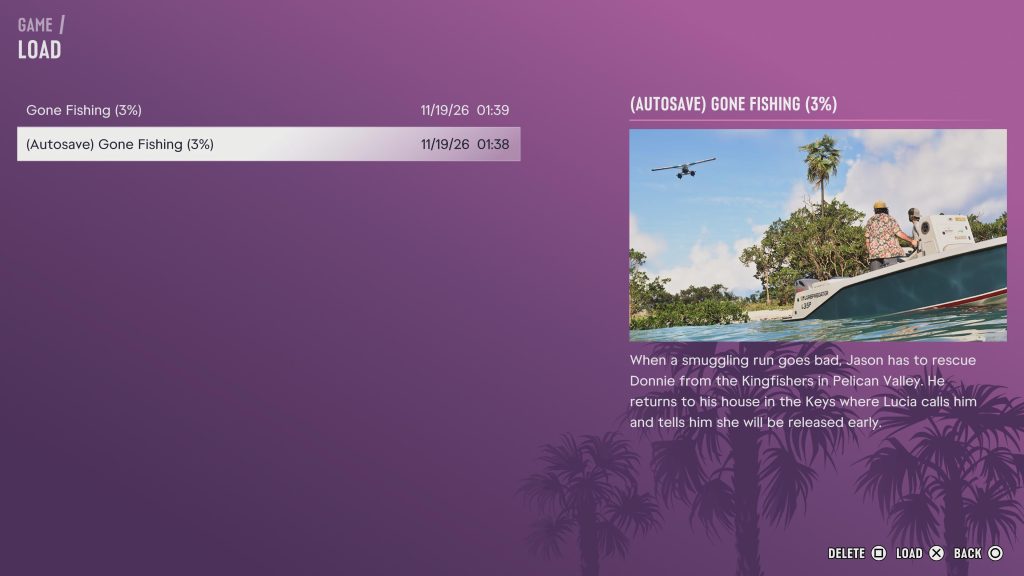
Yes, GTA 6 does feature an auto-save system, but it appears to be somewhat inconsistent and unreliable.
It’s currently unclear exactly what triggers an automatic save, although our experience suggests that they tend to occur after completing main story missions and certain notable open-world activities. This can include sleeping to advance to a new day or encountering particular events while exploring Leonida.
However, even when these triggers occur, there’s no guarantee that it’ll be recent enough should you die or your game crash and you need to reload. Given the number of reports surrounding lost progress, relying entirely on the auto-save system probably isn’t worth the risk.
Thankfully, Rockstar has also included a manual save feature, giving you 15 separate save slots to manage your progress. We’d strongly recommend taking advantage of these as often as possible, particularly if you’ve spent a considerable amount of time exploring or completing missions.
How To Manually Save In GTA 6
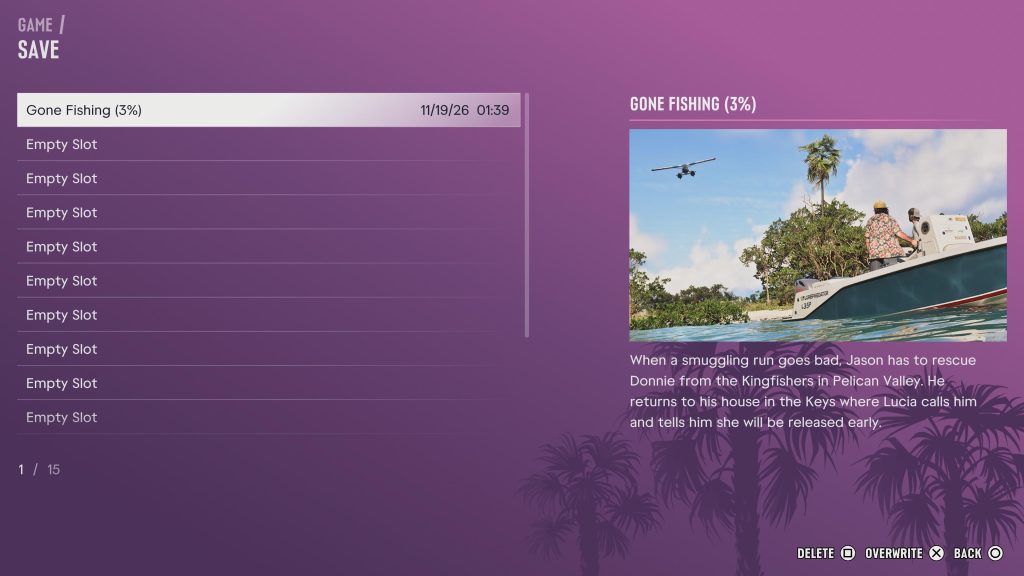
Manually saving your progress in GTA 6 is incredibly straightforward, and you can do so directly through the Main Menu.
Rather than risking hours of lost progress because an auto-save hasn’t triggered, you can create a backup whenever you feel it’s necessary. Here’s exactly what you need to do:
- Open the Main Menu
- Select Game
- Press Save Game
- Select which slot you’d like to use, and Save
That’s all there is to it! The process only takes a few moments, so there’s really no reason not to do it regularly.
We’d recommend creating a manual save roughly every 30 minutes, particularly if you’ve been making significant progress through the story or completing activities across Leonida. With 15 available slots, you can also maintain several backups rather than continually overwriting the same save.
If you need to know anything else about Grand Theft Auto 6, make sure you stop by our full guides hub. It contains everything you could need to learn about the most important game release of all time!
Have you lost any progress in GTA 6? Let us know your thoughts about the game via the free Insider Gaming Discord server.
For more Insider Gaming content, read ‘GTA 6 100% Completion Walkthrough.’ Don’t forget to sign up for our free weekly newsletter.
NOTE: Insider Gaming may earn affiliate commission if you purchase items through links on Insider Gaming. Read more about affiliate commission here.

Charlie is one of Insider Gaming's Guides Writers who's been in the gaming industry for a little over a year. Unfortunately for him, he enjoys every video game genre out…
More from Charlie Champion




Comments