


Minecraft’s latest update introduced a ton of features, including the Vibrant Visuals overhaul, and we’ve got the details on how to toggle it on and off.
Released on June 17 on the Bedrock version, the Vibrant Visuals graphics upgrade features infinite clouds, reflective water, volumetric lighting, and enhanced textures, with plans to bring it to Java editions in the future.
Using the feature requires specific settings to be enabled, however, and you may need to turn Vibrant Visuals off if you are encountering performance issues.
How to Turn on Vibrant Visuals in Minecraft
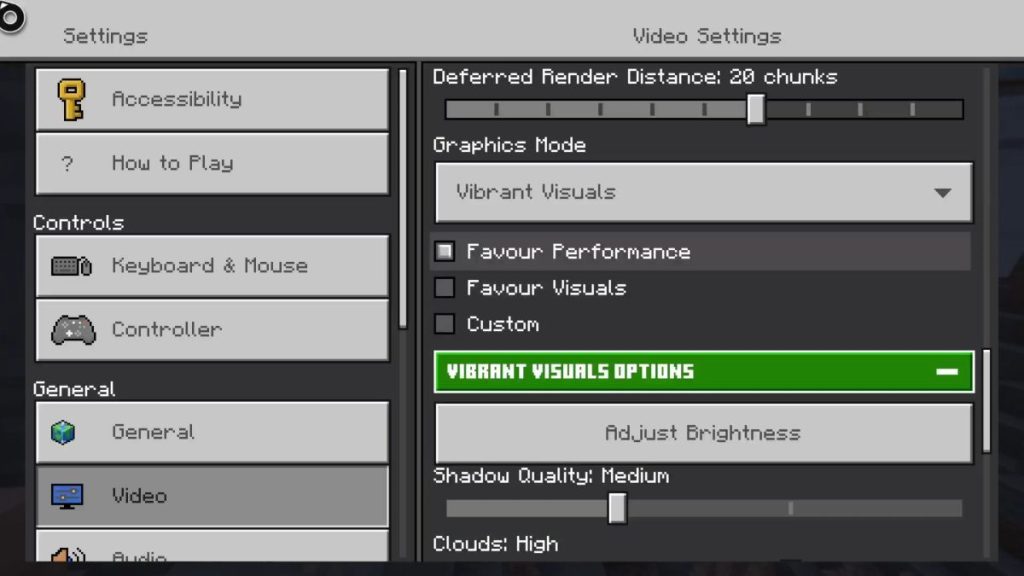
Vibrant Visuals must be turned on to work in Minecraft, which has been made the new default setting, though you may need to tweak it for existing worlds.
Turn Vibrant Visuals on by following these steps.
- Load Minecraft.
- On the Main Menu, select the ‘Settings’ option.
- Scroll down to the ‘General’ tab, and select ‘Video’.
- In the ‘Graphics Mode’ option, ensure Vibrant Visuals is selected.
- Save the settings and return to the main menu.
There are also additional settings for Vibrant Visuals, allowing you to adjust the volumetic fog quality, reflections, bloom, upscaling mode, and resolution.
If you are encountering performance issues, you can lower some of these settings or choose the ‘Favour Performance’ option.
For the best-quality visuals, choose ‘Favour Visuals’. You can also customize the graphics further, though any enhancements may cause more strain for your device.
How to Turn Off Vibrant Visuals in Minecraft
To turn off Vibrant Visuals, there are a few steps to follow and some choices to make. Here’s the to-do list.
- Load Minecraft.
- Open the ‘Settings’ option from the main menu.
- Scroll down the ‘General’ tab to find the ‘Video’ option.
- Locate the ‘Graphics Mode’ option and select it.
- Choose an alternative Graphics Mode—Simple or Fancy are the best bet.
- Save your settings and return to the main menu.
Don’t worry if you need to turn the feature off, as Vibrant Visuals can be toggled back on at any time, but it’s worth checking your platform matches the required specs for the updated version.
Console players won’t have an issue with this, as Vibrant Visuals runs natively, but those on PC will need to be running the game on DirectX 12, while there are also some specific requirements for those opting to play via iOS or Android.
What do you think of the Vibrant Visuals addition and the Chase the Skies update overall? Let us know your thoughts in the Insider Gaming forum.
For more Minecraft, take a look at the upcoming collab with Sonic Racing Crossworld, use this page to keep tabs on the server status, and learn how to craft a Saddle.